
AnExplorer Pro File Manager
DWorkSBusiness
4.1107.00 Reviews
- Version
- Varies With Device
- Installs
- 50.00K
- Age Rating
- Everyone
Screenshots
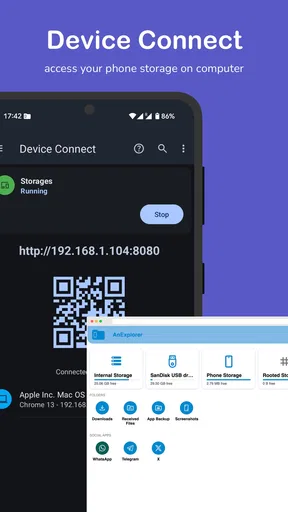
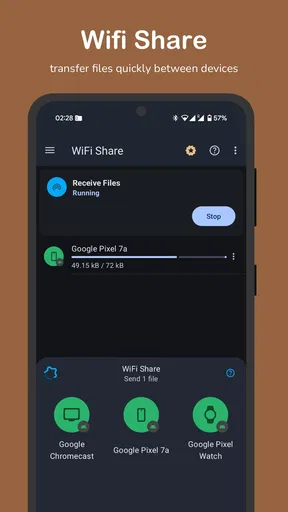

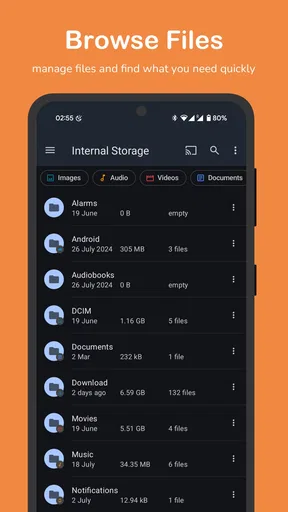
Our Review of AnExplorer Pro File Manager
 Analysis by Appyee
Moving files between the phone, a USB drive, a TV, or another device is one of those small jobs that can waste an unreasonable amount of time. I have repeatedly found myself opening several apps just to locate a download, rename it, copy it somewhere else, and check whether the transfer actually finished. AnExplorer Pro File Manager is built around removing that clutter. It is a business-oriented file management app from DWorkS, and its appeal is less about flashy extras than about giving one place to handle files across a wide range of screens and device types.
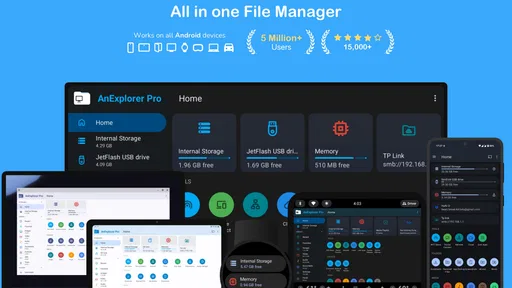
After using it as an everyday file utility, I see the main value clearly: it can turn scattered storage into something easier to browse and manage. The app is aimed at phones, televisions, watches, cars, XR and VR devices, and Chromebooks, so it is trying to solve a broader problem than ordinary phone storage. That ambition is useful when your digital life is spread across several devices, although it also means the experience depends heavily on the hardware and Android environment where you install it.
Why a dedicated file manager still saves time
Modern phones often hide the file system behind separate areas for photos, downloads, documents, media, and app-specific content. Those shortcuts are convenient until a file lands somewhere unexpected. A photo received through one service, a document downloaded from a browser, and a video copied from external storage may all require different routes to reach the same destination. I found that a dedicated manager is most helpful when the task is not simply “open a file,” but “understand where this file is and decide what should happen to it next.”
AnExplorer Pro File Manager gives that job a central workspace. Instead of switching between a gallery, a download screen, and a storage settings page, I can approach the task from folders and locations. That sounds basic, but it changes the rhythm of routine work. I spend less time guessing which app owns a file and more time making a direct choice: move it, copy it, rename it, inspect it, or leave it alone.
The app is listed at a 4.1 average from around 1.5K ratings, with more than 100 written reviews and over 50 thousand installs. Those figures suggest a real user base without making the app feel like a mass-market replacement for every built-in file browser. I would describe it as a specialist tool for people who regularly manage storage rather than as an app everyone needs open every day.
One detail that affects the buying decision is the price. AnExplorer Pro File Manager is listed at $29.99, which makes it a serious purchase for a file utility. I would not recommend paying that amount simply to browse a few folders once in a while. The stronger case is for someone who repeatedly handles files across unusual device categories, external storage, or work-related folders and values having one consistent tool available.
The first setup should be treated as a workflow test
My advice is to begin with a small, low-risk task rather than immediately reorganizing the entire device. Open the locations you use most, find a few ordinary files, and test the actions you expect to use: copying, moving, renaming, and opening. This quickly shows whether the folder structure feels natural on your particular screen. A phone, a television, and a Chromebook do not offer the same amount of space, so a layout that feels comfortable on one may feel cramped or slower on another.
I also recommend creating a simple working habit before touching important folders. Decide where temporary downloads should go, where documents should live, and which location is reserved for files that need to be moved to another device. This is not a feature claim; it is a practical way to get more from the app. A file manager can expose a messy storage system just as easily as it can organize one. Without a basic naming and folder plan, the extra visibility may only reveal more clutter.
When moving files, I prefer copying first if the original is difficult to replace. That extra step takes more storage and time, but it reduces the risk of losing the source through an accidental move or an unclear destination. Once the copy opens correctly, I remove the original only when I am sure it is no longer needed. This cautious workflow is especially sensible for work documents, recorded footage, or files being prepared for a presentation on another device.
The app’s broad device positioning also changes how I would test it. On a phone, I would check whether navigation remains quick with one hand. On a TV, I would focus on whether folders and filenames are readable from a distance. On a watch, the useful question is not whether it replaces a full desktop manager, but whether it helps with the limited file tasks that make sense on a small display. On a Chromebook or XR device, I would pay more attention to how well the file structure fits into a larger, more computer-like workflow.
A realistic day with scattered files
Imagine a workday in which a document arrives in the morning, a reference image is downloaded later, and a video needs to be prepared for viewing on a television in the evening. The usual approach may involve locating each item through the app that received it, opening separate sharing menus, and repeatedly checking whether the destination accepted the file. I would use AnExplorer as the control point: locate the items, give them clearer names, place them in one temporary folder, and then copy the finished group to the destination storage.
The time saving is not necessarily one dramatic shortcut. It comes from reducing small decisions. I do not have to remember which service delivered each file, and I can inspect the destination before starting the transfer. That is particularly helpful when filenames are vague or when several versions of the same document exist. A clear folder view makes it easier to notice duplicates and incomplete organization before they become a problem.
Another useful scenario is preparing a device for someone else. I might collect manuals, lesson materials, travel documents, or offline media in a dedicated folder, check the names, and then move the folder to the device that will actually be used. This is cleaner than sending files one at a time through unrelated apps. It also gives me a single place to revisit if I need to update the package later.
For people who use a television or car system as part of their routine, the app’s multi-device focus is more relevant than it first appears. The challenge is often not finding content in the first place, but getting it into a location and format that the receiving device can see. A file manager cannot solve every compatibility issue, but it can remove the organizational step that usually gets in the way. I would still check the receiving device’s own file support rather than assuming that a successful copy means the file will play.
Where the app removes friction
The biggest improvement is mental rather than visual. A file manager gives me a map of storage instead of a collection of disconnected entrances. That matters when I need to answer practical questions: Is the file still on the device? Did I copy it or move it? Which folder contains the newest version? Is there enough room at the destination? The more often I ask those questions, the more valuable a central tool becomes.
It is also useful for deliberate cleanup. Rather than deleting items from whichever app happens to display them, I can review folders by purpose. I might separate temporary downloads from files I intend to keep, or move completed work away from an active project area. This approach makes cleanup less impulsive. I am less likely to delete something simply because it looks unimportant in a thumbnail view, and more likely to remove files because I understand their role.
Renaming is another small action with a large effect over time. A descriptive filename can save repeated opening and closing when several files look similar. I use a consistent pattern for documents and media, then place related items together. This is especially helpful when files are later viewed on a TV or another device where sorting and searching may be less comfortable than on a phone.
There is a trade-off, however. More control means more opportunities to make a wrong choice. A built-in gallery usually protects me from thinking about folders, while a file manager exposes the consequences of every move. I would not hand the app to someone who only wants to view photos and never manages storage. For that person, the extra layer may feel like work rather than relief.
Useful habits for external and cross-device work
My first practical tip is to use a staging folder for transfers. Instead of copying files directly from many unrelated locations to an external destination, I gather them temporarily, check the selection, and then perform one organized transfer. This reduces the chance of forgetting an item and makes it easier to repeat the process when a file changes.
My second tip is to verify the destination after important operations. I do not rely only on the appearance of a completed action. I open the destination, confirm the filename, and, when appropriate, open the file itself. This is a worthwhile habit when moving material between a phone and a television, car system, Chromebook, or immersive device because each environment may present files differently.
My third tip is to avoid using a file manager as a substitute for backup. Copying a file to another folder or device can improve access, but it is not automatically a complete backup strategy. For irreplaceable work, I keep a separate copy and avoid deleting the original until the transferred version has been checked. The app helps me manage copies; it does not remove the need for sensible storage practices.
A fourth insight is that the best destination is not always the most obvious one. A folder that is easy to reach on a phone may be inconvenient on a TV, while a folder that works well for a car system may be difficult to maintain from a small screen. I choose destinations based on where the file will be used, not merely where there is free space. This is where the app’s wide device scope becomes genuinely practical: it encourages me to think about the whole path of a file.
Who will appreciate it, and who should skip it
I think the app suits people who move documents, media, and folders between several devices; users who dislike fragmented storage; and anyone who wants more direct control than a manufacturer’s basic file browser provides. It is also a reasonable fit for a small business workflow where files need to be collected, renamed, sorted, and prepared for use on different screens.
I would be more cautious if you rarely leave the phone’s standard photo and document apps. The price is difficult to justify for occasional browsing, especially when the built-in tools already cover simple downloads and sharing. I would also skip it if you expect a file manager to solve playback compatibility, cloud synchronization, or backup by itself. Those are separate concerns, and buying a more capable browser does not automatically remove them.
Compared with a basic built-in file app, this tool’s advantage is the broader way it approaches devices and storage. The built-in option may be faster for one familiar task, but it can feel limiting when files are spread across less typical hardware. Compared with a desktop file manager, AnExplorer is more convenient when the work starts on a mobile or specialized device, but it should not be expected to replace every computer-based operation. I see it as a bridge between simple browsing and full desktop-style control.
Price, maturity, and everyday reliability
DWorkS has been developing this app since its release on Dec 4, 2011, giving it a long history for a utility of this kind. The age of the project is reassuring in one sense: file management is a focused problem, and a mature tool can be more useful than a fashionable app that changes direction constantly. At the same time, long availability does not guarantee that every interface choice will feel modern on every current device. I would judge the experience by how naturally it fits the hardware I actually use.
The Everyone content rating makes the app broadly approachable from an age-classification perspective. That does not mean every operation is risk-free, though. File deletion, moving, and overwriting are actions that deserve attention regardless of the rating. I would keep the first few sessions conservative, especially when working with folders whose names are unfamiliar or shared by system components.
Reliability, for me, means more than opening folders quickly. It means being able to understand what happened after an operation and recover from a mistake. The app is most convincing when I use it deliberately: select a manageable group, choose the correct destination, confirm the result, and keep important originals until the process is complete. That workflow may sound slower than an instant share button, but it is often faster than repairing a badly organized transfer later.
My verdict after looking at the whole workflow
AnExplorer Pro File Manager is most valuable when file handling is a recurring task rather than an occasional nuisance. It gives me a clearer way to collect, organize, and move material across phones, televisions, watches, cars, XR and VR devices, and Chromebooks. The practical benefit is the friction it removes: fewer app switches, fewer guesses about where files went, and a more deliberate way to prepare content for another screen.
I would not recommend it automatically to every Android user. The $29.99 price places it firmly in the category of a purposeful utility, not an impulse download. If you only need to open downloads or share a photo, the standard tools are probably enough. If you regularly manage mixed file types, external destinations, or several device environments, the cost becomes easier to understand because the app can save repeated effort rather than merely adding another icon.
My final recommendation is to buy it only if you can name the recurring file problem you want it to solve. If that problem is scattered storage and awkward cross-device transfers, this app offers a focused answer and enough flexibility to become part of a dependable routine. If your needs are limited to viewing media or making occasional shares, I would choose the simpler alternative and keep the workflow lighter.
Verdict
Strengths of AnExplorer Pro File Manager
- Dual-pane browsing makes copying and moving files faster.
- Built-in media previews reduce the need for extra viewer apps.
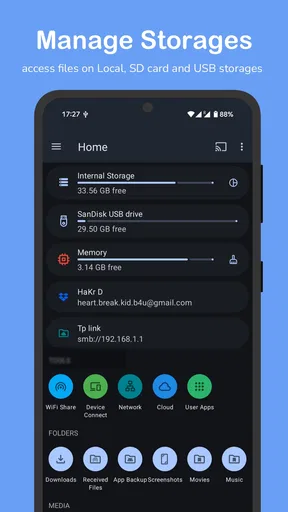
- Supports USB OTG storage for managing files on compatible devices.
- Bookmarking favorite folders provides quick access to frequent locations.
- Archive tools handle common compressed file formats conveniently.
Limitations of AnExplorer Pro File Manager
- Some advanced features may require Android version or device support.
- The interface can feel dense for users who prefer simpler file managers.
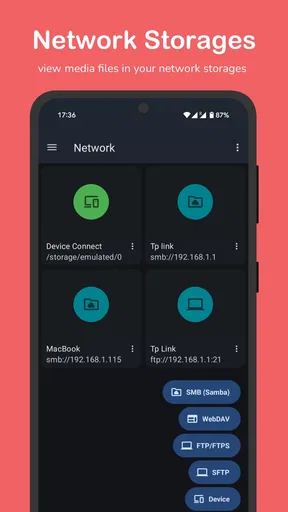
- Wireless file sharing may require extra setup on the local network.
- Large folder scans can take time on older or low-storage devices.
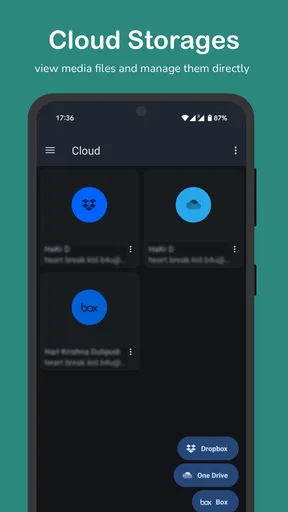
- Cloud integration options may be less extensive than dedicated cloud apps.
Similar Picks in This Category
View All
LinkedIn: Community & Network
LinkedIn3.8

Zoom Workplace
zoom.com4.1

Microsoft Teams
Microsoft Corporation4.6

Meta Business Suite
Meta Platforms, Inc.4.6

Webex Meetings
Cisco Systems, Inc.4.5

TeamViewer Remote Control
TeamViewer4.4
Frequently Asked Questions
What is AnExplorer Pro File Manager, and what can I use it for?
AnExplorer Pro File Manager is an advanced file-management application designed to help you browse, organize, copy, move, rename, delete, compress, and share files on an Android device. It can be useful for managing documents, photos, videos, music, downloads, and folders from one interface. Depending on the device and Android version, available features may also include storage analysis, archive support, cloud or network access, and media previews.
Does AnExplorer Pro require root access to manage files?
No, AnExplorer Pro is generally intended to work on standard, non-rooted Android devices, so most users can manage accessible internal and external storage without modifying the operating system. However, Android security restrictions still apply. Certain protected folders, application data directories, and system locations may be unavailable unless the device grants special access or has been rooted. Rooting is not required for normal file-management tasks.
What permissions does AnExplorer Pro need, and is it safe to use?
The application needs storage or file-access permissions to display and manage files on your device. Depending on the Android version and the features you use, it may also request access to network locations, cloud services, or media content. These permissions are expected for a file manager, but you should review them carefully, download the app from a trusted source, and avoid granting permissions unrelated to the functions you plan to use.
Can AnExplorer Pro work with ZIP files, USB storage, and network locations?
AnExplorer Pro is designed to support more than simple browsing of internal storage. Users may be able to open, create, extract, and manage common archive files such as ZIP files, while compatible devices can also provide access to microSD cards or USB storage through an OTG adapter. Network or cloud features may depend on the app version, Android permissions, connection quality, and the specific service being accessed.
Is AnExplorer Pro free, and are there any limitations to consider?
AnExplorer Pro is a premium-oriented version of the file manager, so availability, pricing, and included features can vary by store listing and region. Before downloading, check whether it is a one-time purchase, includes optional purchases, or replaces a free edition. Also review compatibility with your Android version and device, because some advanced functions—such as cloud connections, archive tools, or specialized storage access—may have platform-specific limitations.
